Create a puzzle
The puzzle panel creates real, interlocking puzzle pieces as native PowerPoint shapes — not an image, but editable shapes with fill, outline, text and effects. The tabs and nubs of adjacent pieces fit together exactly. Several modes cover everything from an empty grid through a sliced picture to a scattered word puzzle, a ring and a linear strip.
From the Pro licence
The puzzle tool is available from the Pro licence (Trial included).
Opening
In the ribbon PPPTools → group "Tools" click Puzzle. The panel opens on the right, with three tabs:
| Tab | Contents |
|---|---|
| Aufbau | Edge profile, mode, structure, target frame, aspect ratio, gap |
| Stil | Edge form, fill/palette, gradient direction, outline, 3D, shadow, grouping, labelling |
| Presets | Save, apply and delete complete settings as a named template |
The Einfügen (insert) and Aktualisieren (update) buttons sit fixed at the bottom.
Live preview (Aufbau tab)
At the very top of the Aufbau tab a schematic live preview shows how the puzzle will look with the current settings — grid/picture as an interlocking grid, strip with one or two numbered rows, single pieces side by side, words as scattered labelled pieces, and the ring as a segment wreath. It updates instantly on every change (mode, count, edge profile, palette/gradient, outline, numbering, selected pieces). It is purely for orientation and does not change the slide.
Edge profile first
At the very top of the Aufbau tab you pick the Kantenprofil — the shape of the tabs and blanks. This choice comes first because it also determines the original size.
| Profile | Character | Original body |
|---|---|---|
| Organisch | Soft, slightly organic tabs (original profile) | 5.14 × 3.56 cm (landscape) |
| Klassisch | Straight base edge with a round knob | 5.14 × 3.56 cm (landscape) |
| Ausgeprägt | Deep, bold knobs | 2.20 × 2.55 cm (portrait) |
Why the profile affects the size
"Ausgeprägt" comes from a nearly square template and is therefore portrait. If you pick Originalgrösse as the aspect ratio, the cell size follows the chosen profile.
Mode
The Modus determines what is created:
| Mode | Result |
|---|---|
| Raster | An empty puzzle of rows × columns |
| Bild | A selected picture is sliced into pieces |
| Einzelteile | One or more single pieces with freely chosen edges |
| Wörter | One scattered, labelled piece per term |
| Ring | A ring/donut of interlocking segments |
| Streifen | A chain of 2–7 pieces, one or two interlocking rows |
Raster
Enter columns and rows, then choose the target frame:
| Target frame | Effect |
|---|---|
| In markiertem Objekt | The puzzle fills the bounding box of the selected shape |
| In Arbeitsbereich | Uses the work area set in the master settings |
| In Foliennutzfläche | Fills the slide with a 1 cm margin |
| Freies Raster | Not the frame but the cell size defines the result |
The aspect ratio controls the cell shape: Rahmen füllen (fill frame), Originalgrösse (profile-dependent), 1:1, 4:3 or 16:9.
Outer edges open (per side)
Under Aussenkanten offen you decide per edge — top · right · bottom · left — whether it is closed (straight) or open (tabs/blanks). This applies with edge form Puzzle; "Alle Kanten gerade" keeps everything flat and "Auch aussen Nasen" opens all four sides anyway (the checkboxes are then greyed out). Open edges protrude slightly beyond the frame.
Free grid at original size
With Freies Raster + Originalgrösse, each cell takes the exact original body size of the edge profile — the cell width field is then filled and locked automatically.
Bild
Select a picture (or shape) and click Einfügen. The picture is sliced according to columns × rows. Whether the pieces are labellable is controlled by the checkbox on the Stil tab:
- Labelling off → each piece is a picture crop (no text, but an outline is possible).
- Labelling on → each piece is a shape with the picture as its fill, seamless and text-capable.
Einzelteile
Here you pick individual pieces via a tile picker, grouped by position:
| Group | Meaning |
|---|---|
| Ecken (corners) | Two adjacent edges flat — laid out as a 2×2 at their real corner position (top-left = N+W flat, etc.) |
| Ränder (edges) | One edge flat — grouped by the flat side (north/east/south/west) |
| Mitte (middle) | Tabs/blanks all around |
Several tiles can be selected at once (counter at the top). The piece size is set via aspect ratio and width.
Wörter
One term per line → one scattered, labelled piece per term with random edges and rotation. Font and size are adjustable; the font colour is derived automatically from the contrast of the fill colour, or chosen manually. The scatter area is either the slide or the work area.
Ring
A ring/donut of interlocking segments. Fields: Aussendurchmesser (outer diameter), Ring-Breite (donut width), Anzahl Teile (number of pieces). The centre is the selected object, otherwise the slide centre. Optionally with numbers (centred in each segment) and callouts (radial line + text box).
Streifen
A chain of 2–7 pieces per row — as one row or two interlocking rows (the middle horizontal seam truly interlocks). The pieces always interlock inside; the outer edges are either straight or — via the "Alle Aussenkanten offen" switch — open all around with tabs/blanks. The start is next to the selected object, otherwise top left.
| Option | Effect |
|---|---|
| Reihen (rows) | One row or two interlocking rows (both with the same piece count) |
| Alle Aussenkanten offen (all outer edges open) | Edges all around with tabs/blanks instead of straight (the start shifts in slightly so nothing is clipped at the slide edge) |
| Nummerierung (numbering, 2 rows only) | Continuous 01…2N (top, then bottom) · Column-paired (column 1 = 01/02, column 2 = 03/04 …) · Per row 01…N (each row on its own) |
| Callouts (1 row only) | Line + text box below, above or alternating (first-top or first-bottom — a zig-zag across the pieces) — with 2 rows automatic: top row above, bottom row below |
Optionally with numbers (centred in each piece) and callouts (line + text box, staggered).
Adopt size & style from a selected piece
The button at the top of the Aufbau tab reads the current size and full style from a selected piece — even if you resized it manually beforehand. New pieces are then created identically. The size is always recomputed from the bounding box; the style comes from the tag (for grouped puzzles) or is analysed directly on the shape.
Stil
The Stil tab applies to all modes:
| Setting | Effect |
|---|---|
| Kantenform | Puzzle · all edges straight · outer tabs too |
| Füllung / Palette | Theme colours, single colour, no fill, or one of the shared colour palettes |
| Verlaufsrichtung | Left-right, right-left, top-bottom, bottom-top, diagonal, radial, random — how the palette runs across the puzzle |
| Rahmen | Colour and weight |
| 3D / Schatten | Depth or drop shadow |
| Gruppieren | Combine all pieces into one group |
| Teile beschriftbar | Each piece gets a centred text frame (horizontally and vertically centred) |
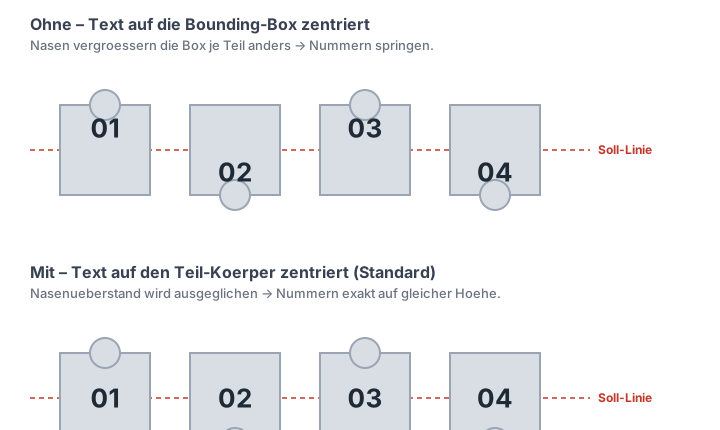
| Text auf Teil-Körper zentrieren | Aligns numbers/labels to the actual piece body instead of the bounding box (default: on) |
Text always centred
With Teile beschriftbar on (default), each piece's text sits horizontally and vertically centred — in every mode.
Centre text on the piece body (default: on)
Every tab enlarges a piece's bounding box in a different direction. If the text is centred on that box, the numbers drift up/down or left/right from piece to piece — they no longer line up cleanly. With Text auf Teil-Körper zentrieren the tab overhang is compensated so the text sits on the square body of the piece and all numbers end up at exactly the same height. The option applies to every mode and is on by default; turning it off restores the old behaviour.
Corner gradient as a fill
On top of the palette, each piece can get a corner gradient — from a lightened corner to the full colour. Under Ecke you pick the direction (top-left/-right, bottom-left/-right or centre) or Zufällig (random, also directed, e.g. only to the right); Verlauf-Anteil (ca. %) sets how many pieces get a gradient at all (the exact count varies). The effect composes with any palette and any gradient direction.
Shared colour palettes
The palettes are the same as in the Wordcloud — the full list is on the Colour palettes page (incl. Office Theme). The colour swatch tool lets you apply the same colours to any other objects. The palette dropdowns are sorted alphabetically across all tools, with the gradients as their own block below. The four palettes that follow the slide design sit in the middle of that list — only the colour swatch tool pins Template-Farben (aktives Design) to the top.
Presets
On the Presets tab you save your complete puzzle settings as a named template and re-apply them later with a single click — handy for recurring looks (e.g. "company puzzle 4×3" or "ring, gold") you don't want to set up from scratch every time.
| Action | Effect |
|---|---|
| Name + save preset | Stores all current build and style settings under that name (an existing name is overwritten after confirmation) |
| Anwenden (apply) | Loads the selected preset back into the panel and jumps to the Aufbau tab |
| Löschen (delete) | Removes the selected preset |
Below the dropdown a short summary (mode · palette · gradient · grid if applicable) shows at a glance what the selected preset contains.
Style/build template only
A preset stores no content — neither the words of a word puzzle nor a selected picture. It is always a pure style/build template and can therefore be applied to any content.
Last used
Your last settings are restored automatically when the panel opens — even without explicitly saving a preset. Presets live at %AppData%\PPPTools\puzzle_presets.xml and are included in the backup under "Settings".
Adjust an existing puzzle
A generated (grouped) puzzle can be selected — the panel fills with its settings. After changes, Aktualisieren redraws it in place without the frame growing, because all settings including the frame size are stored in the presentation.
Tips
Gap / spacing
The Fuge / Abstand (pt) field sets a gap between the pieces — 0 for a closed puzzle, larger values for a "pulled-apart" look.
Random edges
The Kanten zufällig option (in Raster, Bild, Ring and Streifen) randomises which way the tabs point — every insert looks different but stays cleanly interlocked.
Image mode needs a selection
The Bild mode requires a selected picture or shape. Without a selection the panel shows a note when inserting.
Number Fields
The number fields in this tool have up/down arrows with a step size that matches the value; a value outside the limits is nudged to the nearest permitted number when you leave the field. The preview recalculates as soon as an entry is committed — Enter, a click next to the field, or an arrow click. Described in full under Number Fields With Arrows.